WPF Ribbon Control
Auf der Zwanzig Zehn Roadshow habe ich in der ersten Demo in einer WPF Anwendung das Ribbon Control eingebaut. Ich habe nun fragen erhalten wo das Ribbon Control denn zu finden ist und wie man es installieren kann.
Stand heute ist Visual Studio 2010 Released, das Ribbon Control ist jedoch weiterhin im Preview Stadium. Auf Scott Guthrie’s Blog wurde darauf hingewiesen das es kurz nach dem erscheinen von Visual Studio 2010 als Release Version rauskommen wird. Wann das genau ist, bin ich im moment am klären.
Das Ribbon Control kann man heute als Preview herunterladen. Dazu besucht man die Codeplex Seite http://wpf.codeplex.com und wählt dort das WPF Ribbon Preview aus. Dort sind die Schritte beschrieben um sich von der Office UI Licensing Site das Ribbon Control runterzuladen.
You can download a preview version of the WPF Ribbon from the Office UI Licensing Site
- Follow the link above and click on "License the Office UI"
- Login using your Windows Live ID. If you don't have a Windows Live ID already, you can create one for free
- Read and accept the Office UI License
- Licensing the Office UI (including the Ribbon) is free. You must accept the license in order to access the WPF Ribbon download
- Click on the WPF Ribbon download button
- Accept the WPF Ribbon CTP License and follow the instructions to download the Ribbon binaries
- Click on the buttons for "2007 Microsoft Office Fluent UI Design Guidelines License" and "Microsoft Fluent Third Party Usage Guidelines" to download the Office UI Licensing Guidelines
Ob zum Release des Controls sich etwas an der Lizensierung ändert, weiß ich Stand heute nicht. Ich vermute mal das es bei der Office UI Lizensierung bleibt.
Hat man die Datei runtergeladen so wird das Assembly einfach im Projekt referenziert und im XAML arbeitet man sogleich mit dem Ribbon-Control, zuerst die Deklaration für den Namensbereich
xmlns:rb="clr-namespace:Microsoft.Windows.Controls.Ribbon;assembly=RibbonControlsLibrary"
und dann die Beschreibung des Ribbon’s selbst, hier ein kurzer Auszug wie ein Tab z.B. deklariert wird:
<rb:RibbonTab Label="Aktionen">
     <rb:RibbonTab.Groups>
         <rb:RibbonGroup GroupSizeDefinitions="{StaticResource RibbonLayout}">
             <rb:RibbonGroup.Command>
                 <rb:RibbonCommand LabelTitle="Clipboard"></rb:RibbonCommand>
             </rb:RibbonGroup.Command>
             <rb:RibbonButton>
                 <rb:RibbonButton.Command>
                     <rb:RibbonCommand
                         LabelTitle="Cut"
                         ToolTipTitle="Cut"
                         ToolTipDescription="Cut text element to the clipboard."
                         SmallImageSource="images/Cut.png"
                         LargeImageSource="images/Cut.png"
                         Executed="OnCommandDoSomething"/>
                 </rb:RibbonButton.Command>
             </rb:RibbonButton>
             <rb:RibbonButton>
                 <rb:RibbonButton.Command>
                     <rb:RibbonCommand
                         LabelTitle="Copy"
                         ToolTipTitle="Copy"
                         ToolTipDescription="Copy text element to the clipboard."
                         SmallImageSource="images/Copy.png"
                         LargeImageSource="images/Copy.png"
                         Executed="OnCommandDoSomething" />
                 </rb:RibbonButton.Command>
             </rb:RibbonButton>
             <rb:RibbonButton>
                 <rb:RibbonButton.Command>
                     <rb:RibbonCommand
                         LabelTitle="Paste"
                         ToolTipTitle="Paste"
                         ToolTipDescription="Paste text element from the clipboard."
                         SmallImageSource="images/Paste.png"
                         LargeImageSource="images/Paste.png"
                         Executed="OnCommandDoSomething"/>

                 </rb:RibbonButton.Command>
             </rb:RibbonButton>
         </rb:RibbonGroup>
     </rb:RibbonTab.Groups>
 </rb:RibbonTab>
Der WPF Designer stellt entsprechend das Ribbon dar:
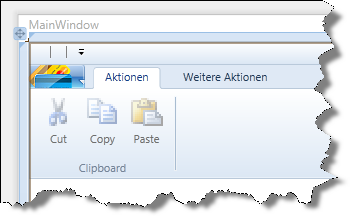
Damit lassen sich WPF Anwendungen entsprechend mit einem Office Look & Feel aufwerten.